Setting up store codes for Online Billing payments
Before the 3.104 release, we could not have multiple online billing sites pointed to different store codes. Because of this, all payments were posted to one store. We have implemented an enhancement, so now you can assign any number of Online Billing sites to a parent terminal. That parent terminal is assigned to a store code. This enables all payments to flow to the proper GL for accounting purposes.
We added an option to the Online Billing website so a store code can be assigned in the site's setup.
Overview of the steps
-
In the Online Billing admin backend setup, select the correct “payment terminal” for this online billing site. You may have to set up more than one Online Billing site to handle the different store codes and assign the payment terminal accordingly.
-
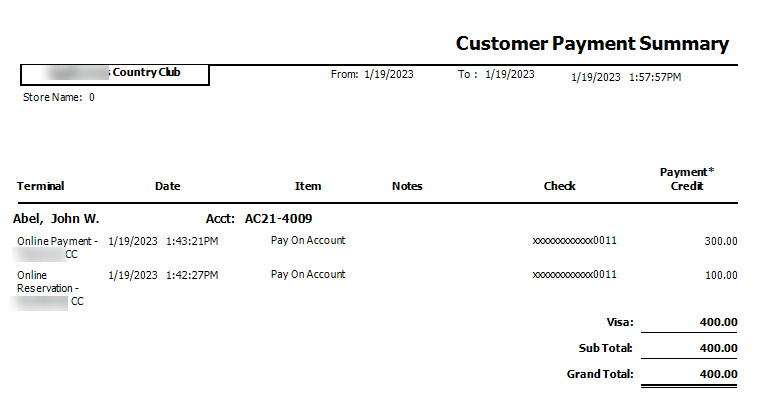
Make a payment online and run a Customer Payment report to make sure it is posted to the proper store code.
Note: Setting up store codes for your inventory is usually done during your initial setup by a Club Prophet support agent; it requires you to be set up with “inventory by store codes” and then have your inventory items assigned to each store.
Shout out to Ross Wilner @talamorefamily.com
Select the correct “payment terminal” in the Online Billing backend
-
Go to your online billing site and log in as an admin.
-
Under the Options tab, scroll down to Payment Options, and from the Payment Terminal drop-down, select the payment terminal option corresponding with the correct store needed.
-
Scroll down to the bottom of the page and select Save in the left corner of the page.
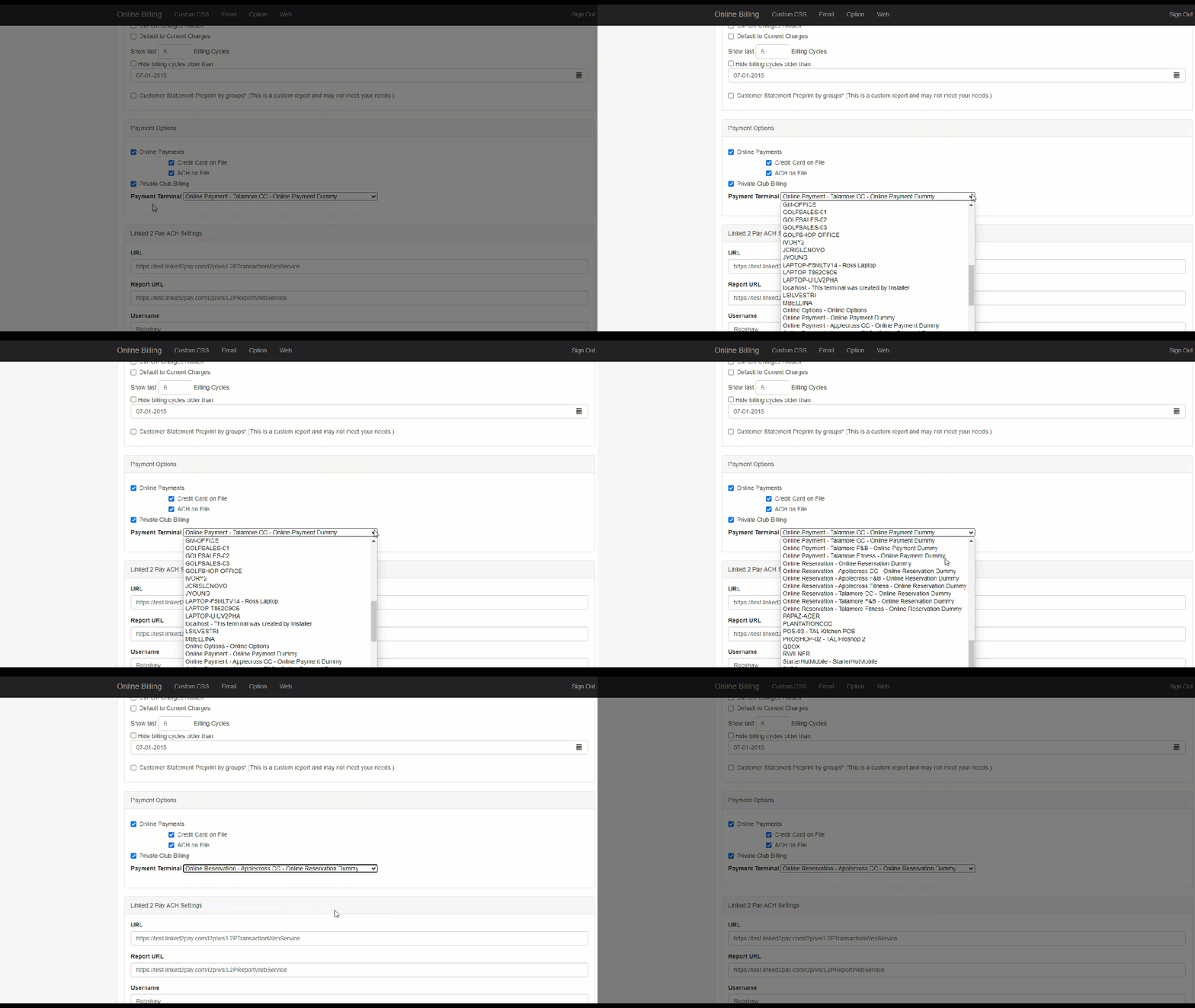
Now the items being sold and paid for in your Online Billing site will be directed to the correct store in your database. To check on this, run the reports in the next section below.
Run the Customer Payment Summary report and the A/R Balancing report
To run these reports from POSExpress, do the following:
-
Go to Reports.
Are you running this report for the first time? If so click, yes>>
-
If you have run this report before, select either On Demand, Daily, Weekly, Monthly, or Yearly buttons depending on the first time you set up and ran this report. The date range settings are set because of the time-frame type button you selected.
-
From the left-hand column, select the Customer Payment Summary or the A/R Balancing report. The settings for this report display to the right.
-
On the right-hand side of the screen, select the criteria to display on this report.
-
Select Display or Print to run the report. For more details on this, click here>>
Example of the Customer Payment report